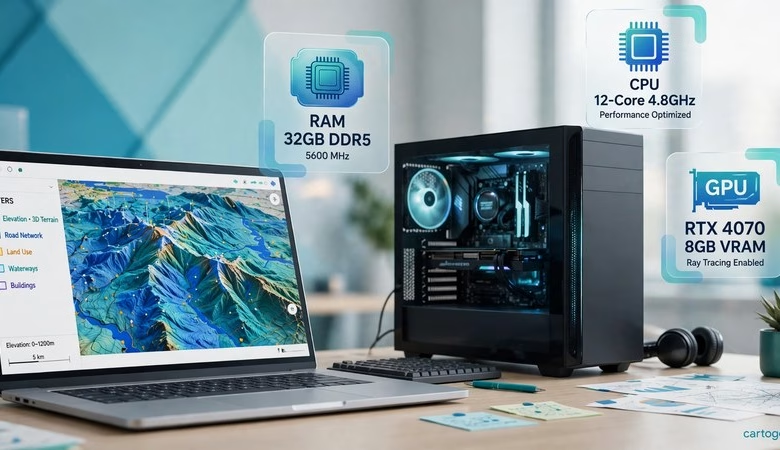
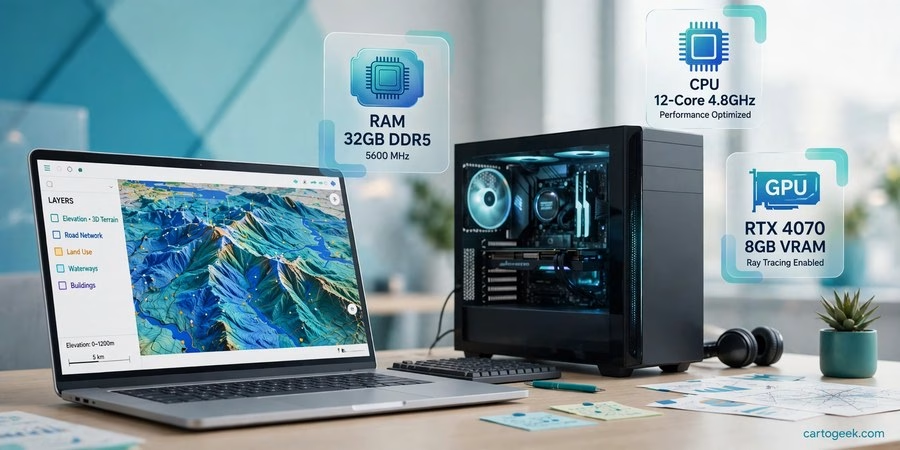
ArcGIS Pro system requirements decide whether the software runs smoothly on your computer or crawls through every map you open. Esri lists minimum, recommended, and optimal specs, and the gap between them is large. A laptop that meets the minimum can launch ArcGIS Pro, but it will struggle with real projects.
This guide explains the official requirements for the current version, ArcGIS Pro 3.8, in plain English. You will see the exact specs for RAM, CPU, GPU, and storage, learn whether your laptop can run it, and get a short checklist to complete before you install.
ArcGIS Pro System Requirements: Minimum, Recommended, and Optimal Specs
The short answer is simple. For smooth everyday work, aim for the recommended specs: a 4-core CPU, 32 GB of RAM, a solid-state drive, and a discrete GPU with 8 GB of video memory. The minimum specs only guarantee that ArcGIS Pro opens.
1. The specs at a glance
| Component | Minimum | Recommended | Optimal |
|---|---|---|---|
| Operating system | Windows 11 (64-bit) | Windows 11 (64-bit) | Windows 11 (64-bit) |
| CPU | 2 cores, simultaneous multithreading | 4 cores | 10 cores |
| RAM | 8 GB | 32 GB | 64 GB or more |
| Storage | 32 GB free space | 32 GB or more on an SSD | SSD with room for a large cache |
| GPU | Any supported CPU (software rendering) | Discrete GPU | Discrete GPU, 8 GB or more VRAM |
| Display | 1024 x 768 | 1080p or higher | 1080p or higher |
These are Esri’s official figures for ArcGIS Pro 3.8. The requirements have stayed stable across recent 3.x releases, so the same guidance applies if you run 3.5 or 3.6.
2. Operating system: Windows 11 is required
ArcGIS Pro is a Windows-only desktop application. Version 3.8 supports Windows 11 Home, Pro, and Enterprise (64-bit), plus Windows Server 2025, 2022, and 2019. Windows 10 is no longer listed as a supported operating system for the current release.
If your computer still runs Windows 10, upgrade to Windows 11 before installing ArcGIS Pro 3.8. There is no native Mac version of ArcGIS Pro, so Mac users need a Windows environment — see the Mac section below.
3. CPU and RAM: what actually matters
RAM matters more than CPU for most ArcGIS Pro users. The 8 GB minimum lets the software start, but opening large datasets, running geoprocessing tools, and keeping a browser open at the same time will quickly use it up. For students, 16 GB is the realistic floor for coursework, and 32 GB is the sweet spot Esri recommends.
For the CPU, Esri asks for at least 2 cores with simultaneous multithreading, recommends 4 cores, and lists 10 cores as optimal. More cores speed up geoprocessing and rendering. Two extra details from the official docs: some geoprocessing tools need a processor with AVX support, and tool suggestions and semantic search need AVX2. Any modern Intel Core or AMD Ryzen chip from the last several years covers both.
4. GPU: integrated vs discrete graphics
A discrete graphics card is not strictly required, but Esri recommends one for any serious visualization work. Without a GPU, ArcGIS Pro falls back to software rendering, which makes 3D views and smooth map navigation noticeably slower.
Esri recommends a discrete GPU with 8 GB or more of dedicated video memory. DirectX 11 is the minimum, while DirectX 12 is recommended, and OpenGL 4.3 or Vulkan 1.3 are the other supported rendering paths. Keep your graphics driver updated from the manufacturer’s website, not Windows Update, because Windows Update often offers an older driver.
Deep learning work raises the bar further. It needs an NVIDIA GPU with CUDA compute capability 5.0 or higher (7.5 or higher recommended), driver version 551.61 or later, and at least 6 GB of dedicated video memory — 16 GB or more is recommended for larger models.
5. Storage: why an SSD is not optional
ArcGIS Pro needs at least 32 GB of free space, and Esri recommends that space sit on a solid-state drive. An SSD makes project loading, geoprocessing, and map drawing far faster than a spinning hard drive. If your laptop still has a hard drive, this is the single upgrade that helps most.
Leave extra headroom beyond the 32 GB minimum. The temporary visualization cache alone can consume up to 32 GB of space in your user profile. Large raster datasets, lidar files, and offline basemaps add more. A 512 GB SSD is a sensible minimum for a GIS laptop, and 1 TB is better if you work with imagery.
6. Software you need before installing
Two pieces of software must be installed separately before ArcGIS Pro:
Microsoft .NET Desktop Runtime 10.0.0 or later. Use the Windows x64 installer. Note that installing .NET 11 does not satisfy this requirement — it must be .NET 10.
Microsoft Edge WebView2 Runtime version 132 or later. If it is not already on your machine, get it from Microsoft’s Evergreen installer. For a per-machine ArcGIS Pro install, install WebView2 per-machine too, by right-clicking its installer and choosing Run as administrator.
The ArcGIS Pro installer usually handles these for you, but checking them first avoids a failed install. Esri also offers a free compatibility checker app that scans your computer and reports whether it can run ArcGIS Pro.
7. Will my laptop run ArcGIS Pro?
Use this quick guide to judge your machine:
Budget student laptop (basic mapping and classwork): 16 GB of RAM, a 6-core CPU, and a 512 GB SSD. Integrated graphics will work for 2D maps and small projects, but expect slow 3D views.
Midrange laptop (regular GIS work): 32 GB of RAM, a modern 8-core CPU, a 1 TB SSD, and a discrete GPU with 8 GB of video memory, such as an RTX 4060-class card. This matches Esri’s recommended specs and handles most student and professional projects well.
Workstation (lidar, imagery, and deep learning): 64 GB of RAM, a 10-core or better CPU, a fast 1 TB or larger SSD, and a discrete GPU with 16 GB of video memory. This is the optimal tier for heavy analysis.
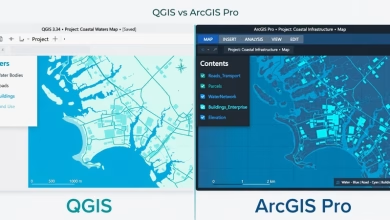
When choosing between two laptops, pick more RAM first. ArcGIS Pro uses memory aggressively, and RAM is the upgrade that removes the most waiting. Our QGIS vs ArcGIS Pro comparison explains when the free QGIS alternative makes sense instead, for example on a Mac or a tight budget.
8. What about Mac users?
There is no native macOS version of ArcGIS Pro. Mac users have three practical options: run Windows in Parallels Desktop with GPU acceleration enabled, use a Windows virtual desktop from your university, or use a separate Windows PC. Boot Camp works only on older Intel Macs, not on Apple silicon.
Many students in this situation learn QGIS on their Mac instead, since it runs natively on macOS. Our QGIS beginner tutorial covers the first project end to end. You can also use ArcGIS Online web tools in a browser for lighter mapping work, and our ArcGIS student license guide explains how US students get ArcGIS access through their university.
9. Pre-install checklist
Before you install ArcGIS Pro, run through this list:
1. Confirm Windows 11 (64-bit) with the latest updates installed.
2. Free at least 32 GB on an SSD, and leave room for the visualization cache.
3. Check you have 16 GB of RAM or more, ideally 32 GB.
4. Install Microsoft .NET Desktop Runtime 10.0.0 or later (x64).
5. Install Microsoft Edge WebView2 Runtime version 132 or later.
6. Update your graphics driver from the manufacturer’s website.
7. Confirm your license: a Named User license through ArcGIS Online or your university, or a Single Use license. Note that Concurrent Use licenses were retired on July 1, 2025.
8. Run Esri’s free compatibility checker if you are unsure about any item above.
View Official System Requirements
ArcGIS Pro System Requirements FAQs
Can I run ArcGIS Pro on Windows 10?
ArcGIS Pro 3.8 supports Windows 11 only — Windows 10 is no longer listed in the official system requirements. Upgrade to Windows 11 before installing the current version.
Is 8 GB of RAM enough for ArcGIS Pro?
It meets the minimum, so the software will start, but it is not enough for real projects. Students should treat 16 GB as the practical minimum, and Esri recommends 32 GB for smooth everyday work.
Do I need a dedicated graphics card for ArcGIS Pro?
Not for basic 2D mapping, but Esri recommends a discrete GPU for visualization, 3D scenes, and lidar. Aim for 8 GB or more of dedicated video memory if you buy a laptop for GIS work.
Can ArcGIS Pro run on a Mac?
There is no native Mac version. Mac users can run ArcGIS Pro through Parallels Desktop with GPU acceleration, a university Windows virtual desktop, or a separate Windows PC. QGIS runs natively on macOS and is the usual free alternative.
How much storage does ArcGIS Pro need?
At least 32 GB of free space on an SSD, with extra room for the visualization cache, which can use up to 32 GB more. A 512 GB SSD is a sensible minimum for a GIS laptop.
How can students get ArcGIS Pro for free?
Most US universities include ArcGIS in an Esri education program, so students access it through the university portal or a .edu email login. Check your university IT page first, and see our student license guide for the routes.
Related posts: QGIS vs ArcGIS Pro: Which to Learn · ArcGIS Student License Free · GIS Certification for Jobs · QGIS Beginner Tutorial
ArcGIS Pro system requirements are straightforward once you know the three tiers: 8 GB of RAM and a 2-core CPU will open the software, 32 GB of RAM with a discrete GPU will run it well, and 64 GB with a strong GPU will handle anything from lidar to deep learning. Check your machine against the recommended specs, upgrade the RAM and storage first if you fall short, and install on Windows 11 with .NET 10 and WebView2 in place.
Disclosure: Some links on this page are affiliate links. If you buy a book through them, CartoGeek may earn a small commission at no extra cost to you. This helps keep our GIS guides free for students. Thank you for your support!
Recommended ArcGIS Pro Books
Getting to Know ArcGIS Pro 3.6 (Esri Press)
by Michael Law, Amy Collins
Esri Press’s best-selling step-by-step workbook for learning ArcGIS Pro, with hundreds of full-color images, real-world case studies and progressive exercises. The long-running “Getting to Know” series has taught GIS to students and professionals for over 20 years.
Pros:
- Official Esri Press material — matches the software exactly
- 300+ full-color screenshots make every step visual
- Works as both textbook and desk reference
Cons:
- Tied to specific ArcGIS Pro versions, so buy the newest edition
- Assumes access to ArcGIS Pro (trial or license)
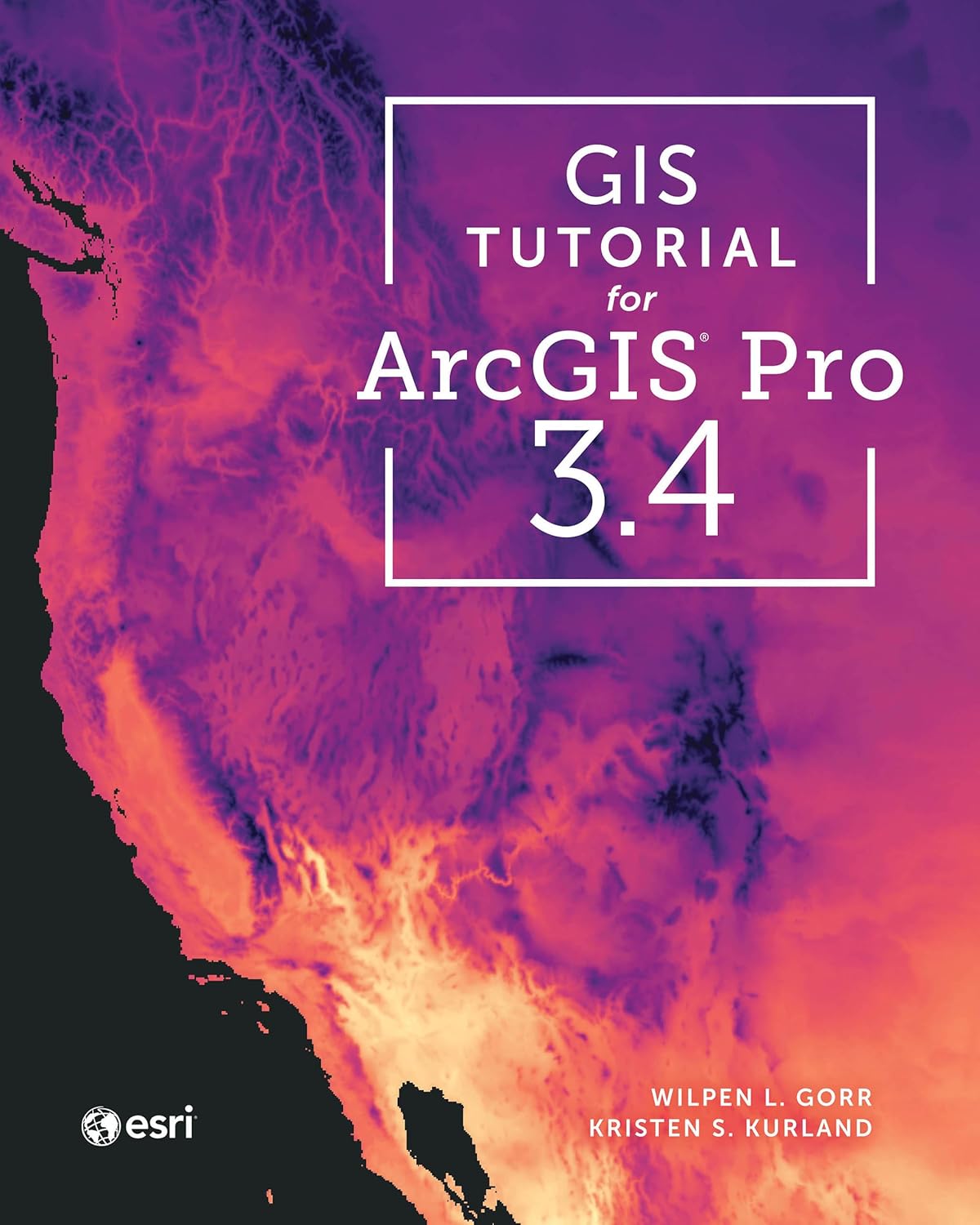
GIS Tutorial for ArcGIS Pro 3.4 (Esri Press)
by Wilpen L. Gorr, Kristen S. Kurland
A classroom-tested ArcGIS Pro workbook by two Carnegie Mellon instructors, with hands-on exercises and homework assignments that build real problem-solving skills. Written for both university courses and self-learners who want a rigorous primer.
Pros:
- Academic rigor — used in real university curricula
- Exercises reinforce each concept
- Instructor resources available for teachers
Cons:
- Denser and more demanding than casual guides
- Best paired with an instructor or study group

Python Scripting for ArcGIS Pro, 3rd Edition (Esri Press)
by Paul A. Zandbergen
Esri Press’s focused guide to automating ArcGIS Pro with Python and arcpy — from first scripts to geoprocessing tools. Short and practical, it targets GIS users who want to stop repeating manual workflows.
Pros:
- Official Esri Press — arcpy examples match the software
- Short, focused, no filler
- Immediately applicable automation skills
Cons:
- Requires basic Python before starting
- Narrow focus — ArcGIS Pro only